




User profiles
General cosmetic clean up of profiles. Also has options to pick what does/does not show on the user blurb.

If you remove certain things from the user blurb (for example join date), it will still be available on the About tab on user profiles.
Profile tabs
The Activity tab and Postings tabs are configurable with user group permissions: Has activity tab on profile and Has postings tab on profile.
Control over user profile fields used for spam
The ability to use Website, Location and About you fields are controlled via user group permissions. Additionally, you can automatically ban users that try to submit those fields when they don't exist (spam bots).

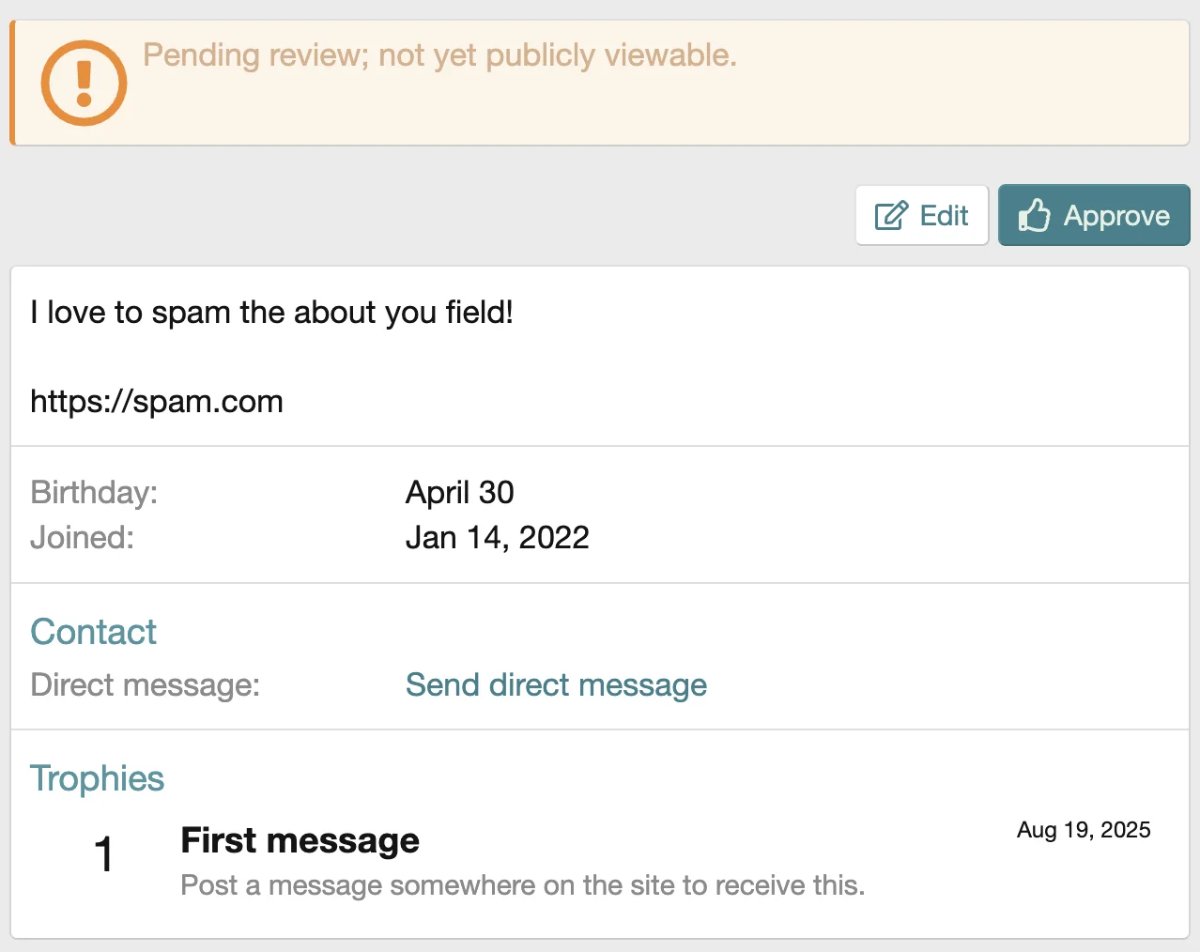
Review About you edits
Ability to send member's "About you" edits to a review queue before they are published (user group permission for which user groups require reviews and who can perform reviews). Additionally, you can control which user groups can use BBCode within the About you field.
Diplay names
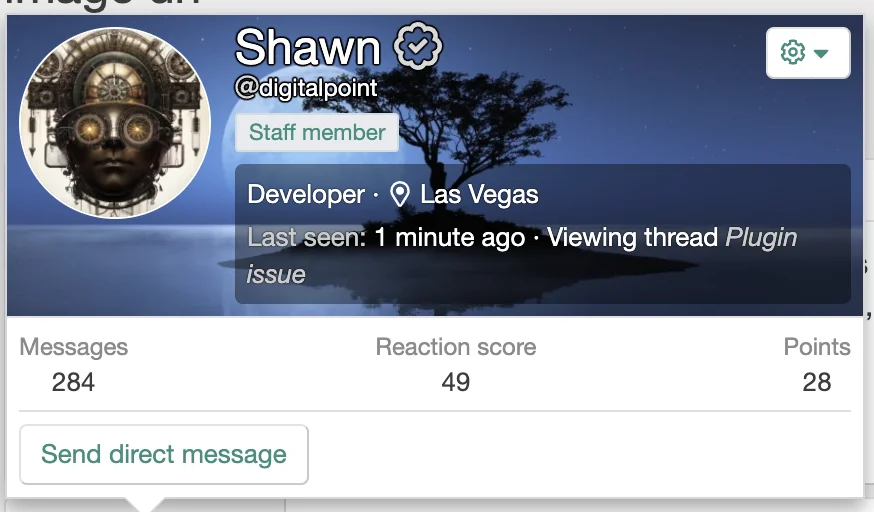
Users have the ability to have display names (separate from usernames). The ability to pick one during registration is done with the User registration -> Choose display name during registration option. The ability to change display names is done with the user group permission, Change display name. Can also be changed via user edit in admin area.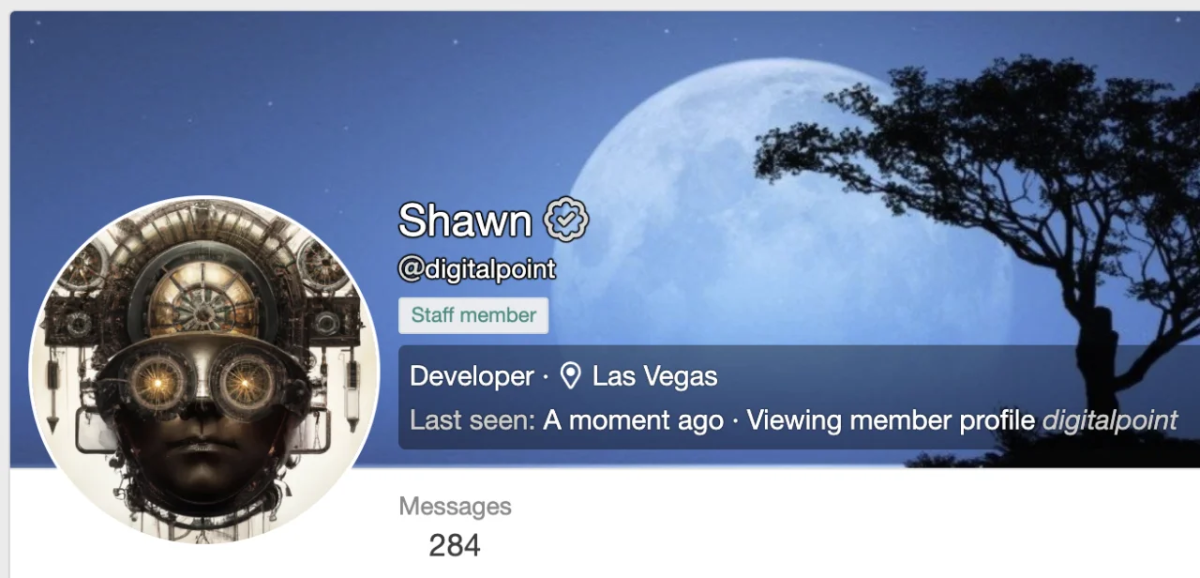
Usernames are prefixed with @, to give a visual indicator that you are looking at a username vs. a display name.
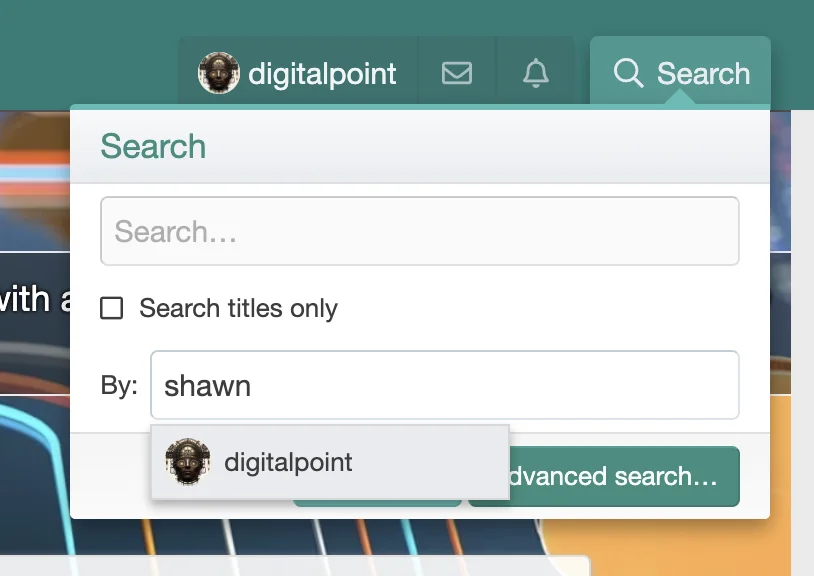
Display names aren't necessarily unique, so you can't completely address users strictly by their display name. Normal username searches do give you the ability to search by display name (but you'll still be presented with usernames due to the uniqueness thing). For example:
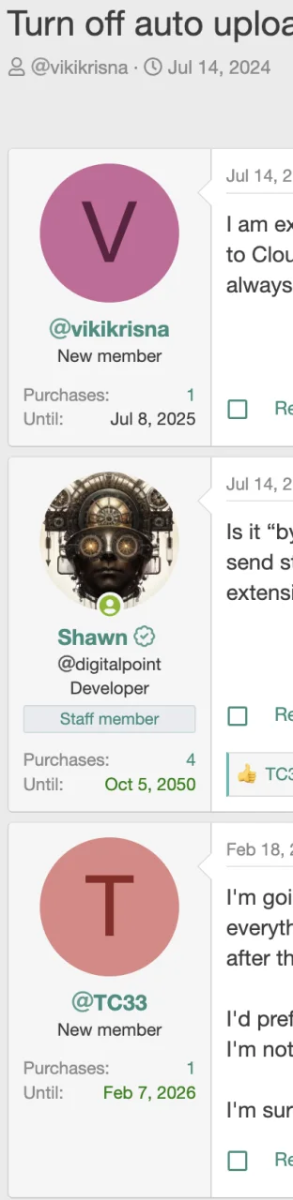
You can see generally how usernames vs display names are presented in various areas (one user has a display name and is "verified", while the other user just has the more traditional username only):
Verified users
You can set certain user group(s) to have a verified badge next to their display name (or username if they don't have a display name). Done via the Verified user group permission.
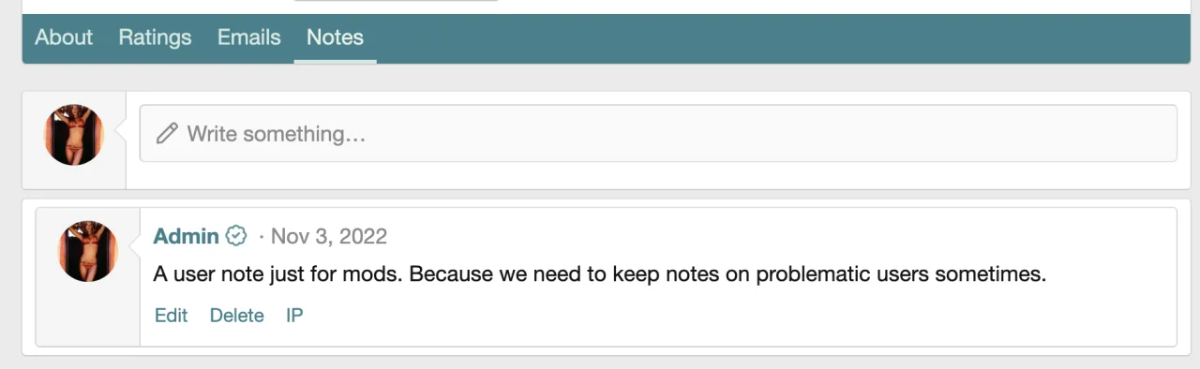
User notes
User group permission based user notes (intended for mods/admins to keep notes about users).
User bookmarks
Users can be bookmarked (user group permission: Can be bookmarked)
Avatar and banner resolution
Slightly increase avatar and banner resolution (keep up with higher resolution screens)
Attribution
In exchange for being free, there's a small link to my website only within the "members" route (user profiles are the most relevant part of the site), next to the RSS icon.
-
 1
1
You may only provide a review once you have downloaded the file.
There are no reviews to display.